BeezzKeys: a keybinds mod for Minecraft 1.20.1–26.3 that shows used and free keys on a keyboard
Download the mod
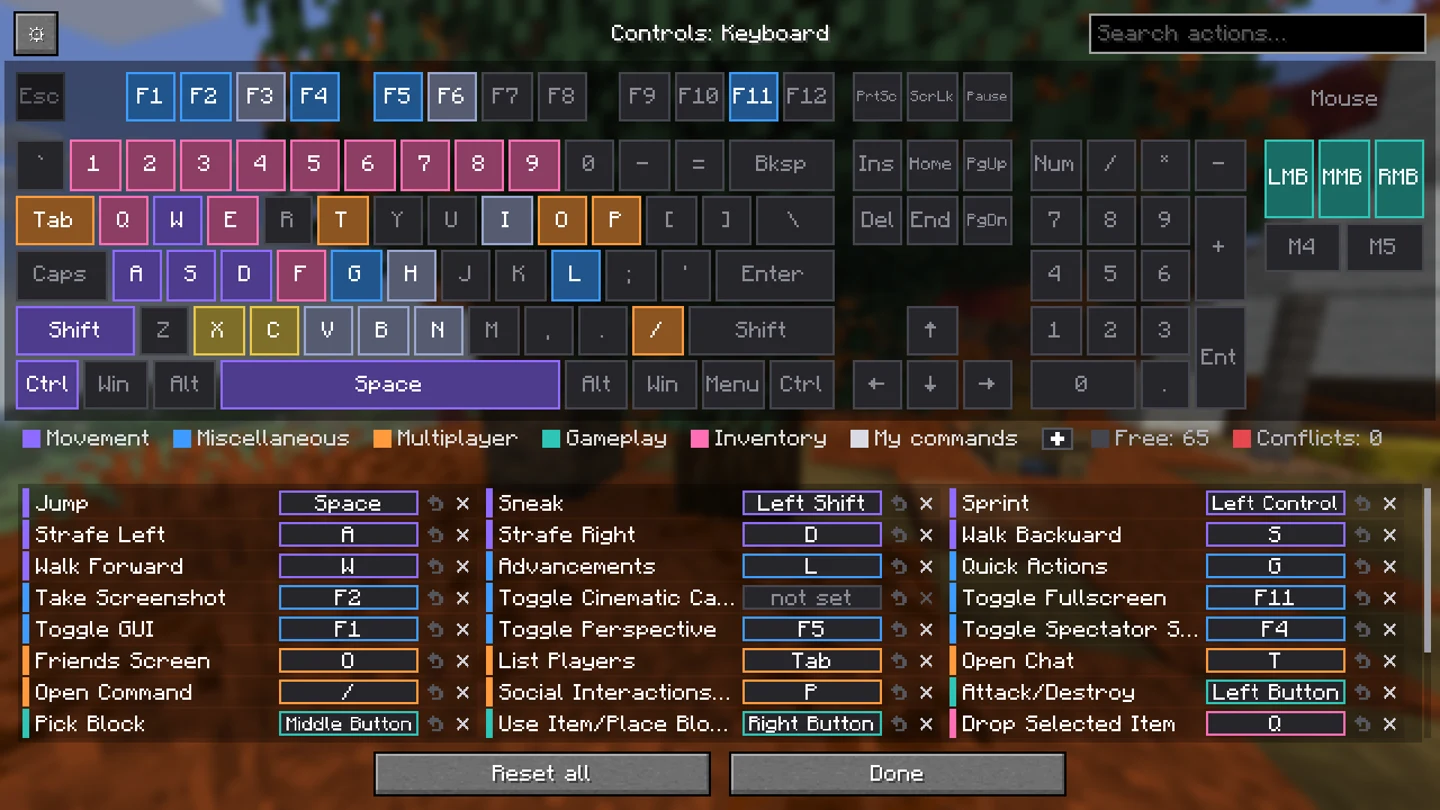
BeezzKeys replaces the Key Binds screen with a drawn keyboard. No more scrolling a long list and guessing whether a letter is taken: used keys are coloured, free keys are grey, and conflicts are red. The idea comes from video editors, where shortcuts are set up exactly this way. Pick your game version and loader above and the site gives you the right file.
| Minecraft | 26.1–26.3, 1.21.11, 1.21–1.21.1, 1.20.1 |
| Loader | Fabric (needs Fabric API) on every version, NeoForge on 1.21.1, Forge on 1.20.1 |
| Where to install | Client only, not needed on the server |
| Interface | English and Russian |
What the keyboard shows
- A used key takes the colour of its category: movement, inventory, multiplayer and so on.
- A free key stays grey. A counter under the keyboard tells how many are left.
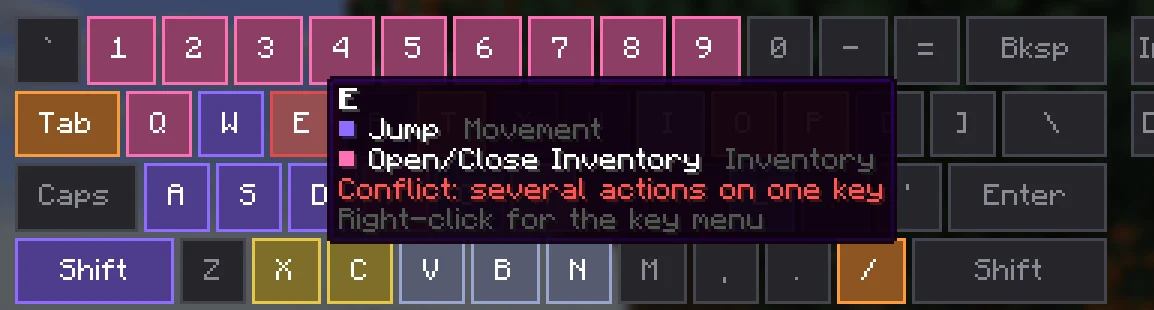
- A conflict, two actions on one key, is red both on the keyboard and in the list.
- Keys of other mods are there too. Every mod's category gets its own colour.
- The mouse is a separate block: left, middle, right and the two side buttons.
Hover over a key and a tooltip lists the actions bound to it.
How to bind a key
There are three ways, and all of them work at once:
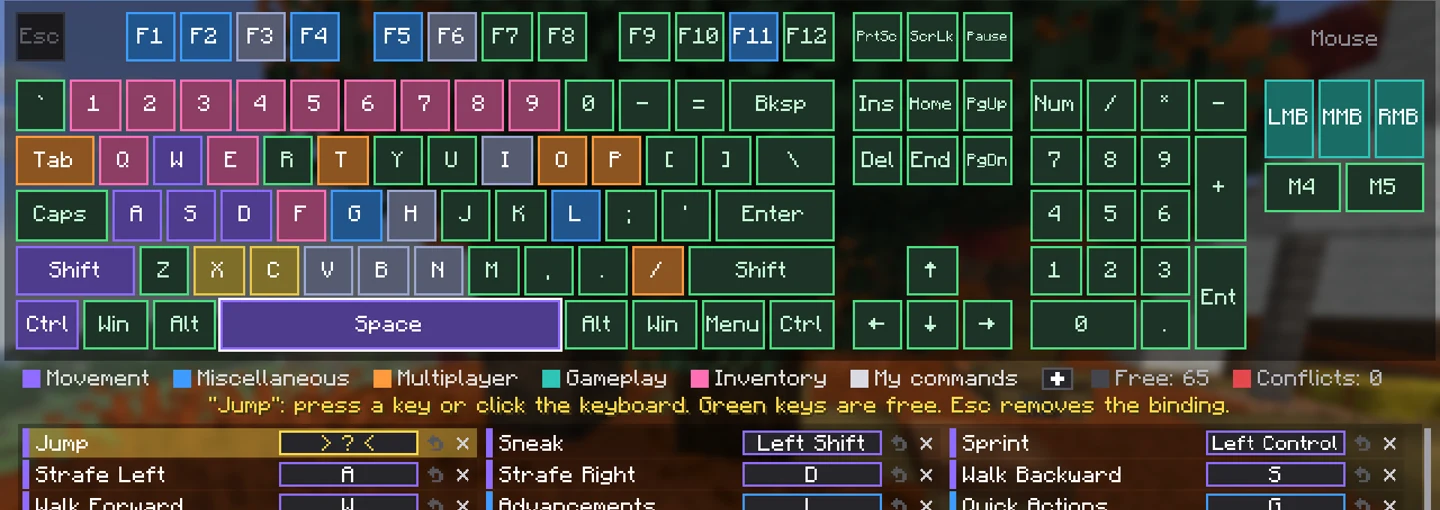
- Click an action in the list and press a key on your keyboard.
- Click an action, then click a key on the drawing. While you choose, every free key is lit green.
- Drag an action from the list straight onto a key.
Every line of the list has an arrow to restore the default and a cross to remove the binding. Made a mistake? Press Ctrl+Z: the mod remembers the last 50 changes.
The key menu
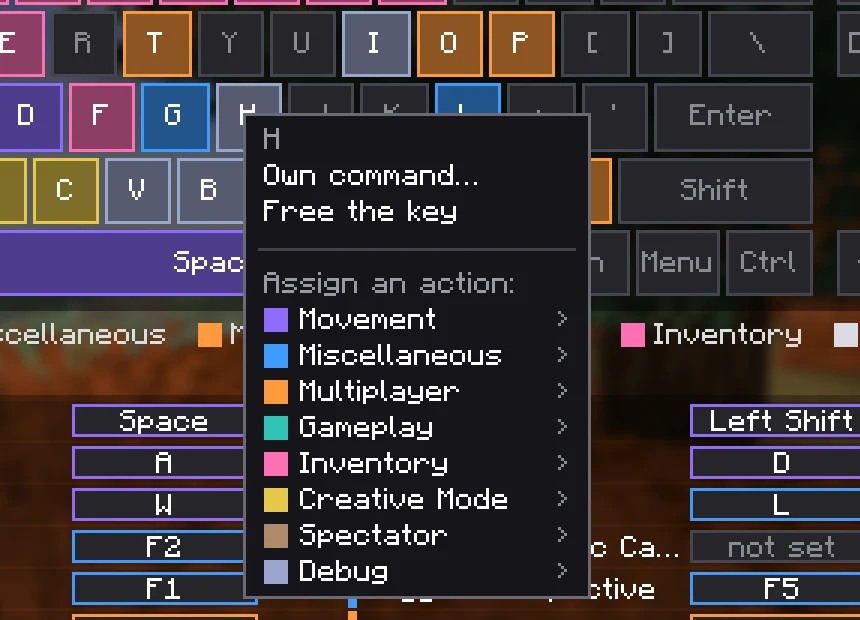
A right click on a key opens its menu. From there you can free the key, give it your own command, or put any action of any category on it, mods included.
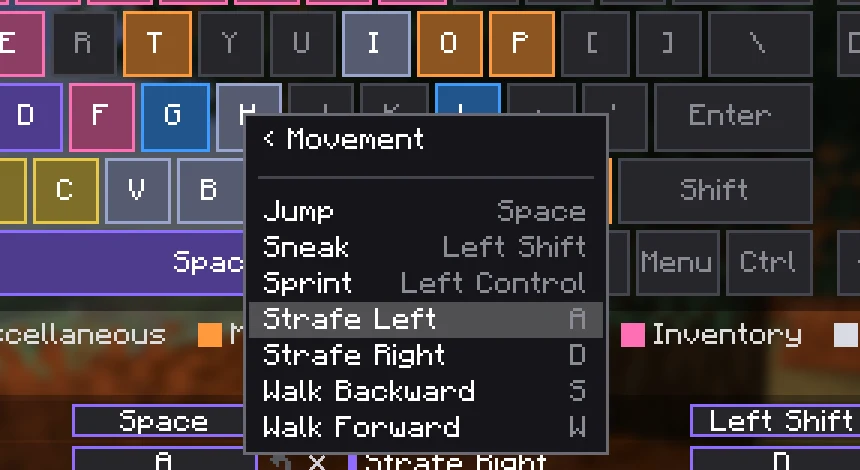
Your own commands and combinations
A key can send your own command: /home, /spawn, /tpaccept, or just a line of chat. Press the key in the game and the command is sent.
Commands work with Ctrl, Shift and Alt. H and Ctrl+H are two different binds, so a taken key is not in the way.
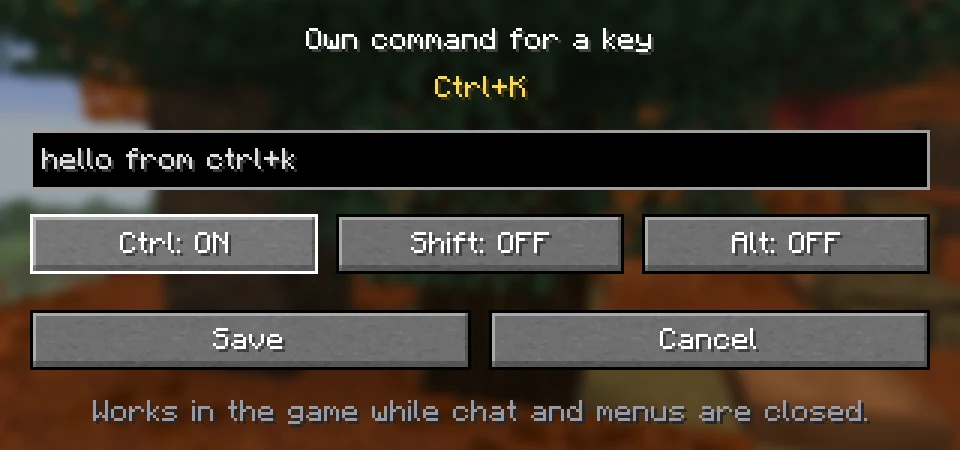
Hold a modifier on the mod's screen and the keyboard shows what is taken with it.
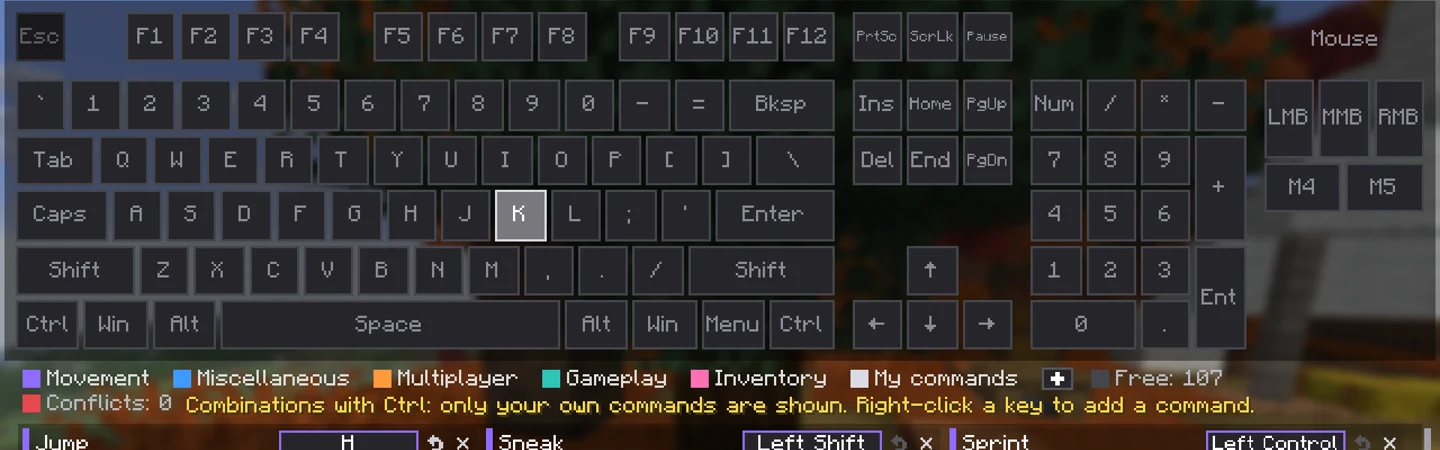
Combinations work for your own commands only. In Minecraft itself an action always has one key, and the mod does not change that.
English letters and the letter of your language
Keys carry large English letters, as on any keyboard: W, A, S, D. If the game is set to another language, the letter of that language sits small in the corner: Z on the Y key for German, Й on Q for Russian. With the game in English there is no second letter.
Tables are built in for Russian, Ukrainian, Belarusian, German, French, Spanish, Portuguese and Turkish. For other languages the mod uses the system layout.
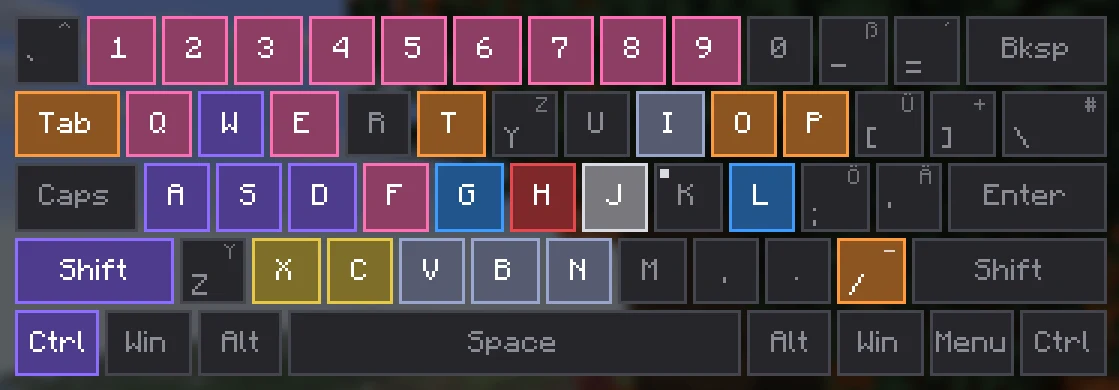
Categories and sets
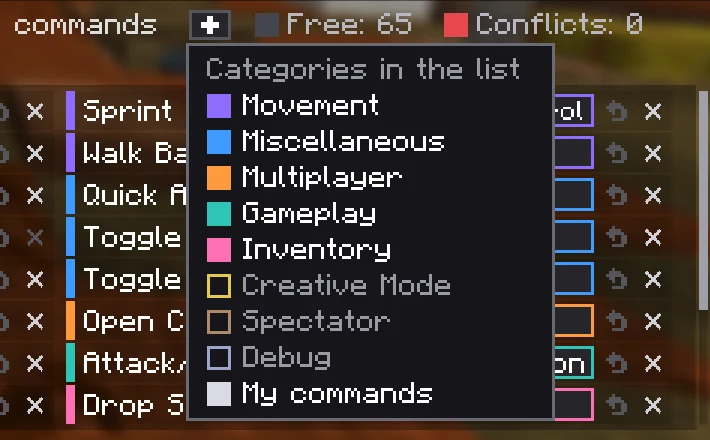
The plus under the keyboard chooses which categories the list shows. Done with creative mode? Take it out of the way. The keyboard itself always shows every used key.
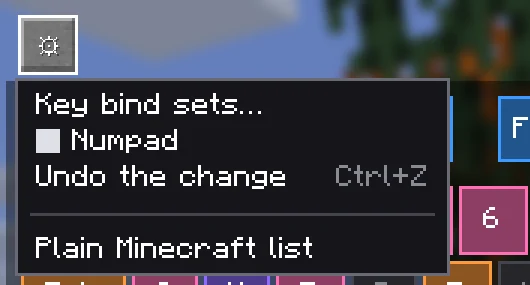
The gear in the corner holds what you need less often:
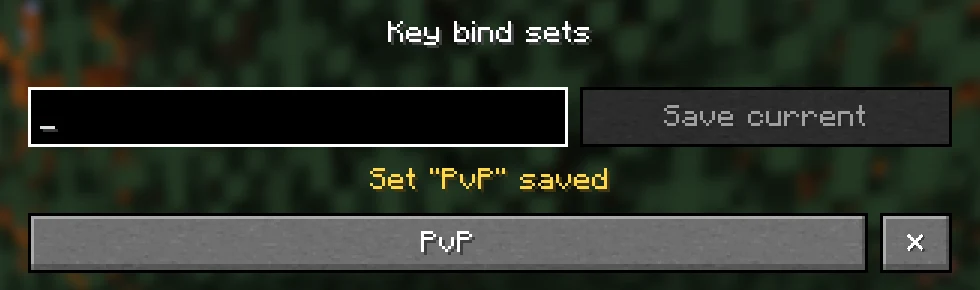
- Key bind sets. Save the current keys under a name, say "PvP" and "Building", and switch with one click. Each set is a file in
config/beezzkeys/presets, so you can send it to a friend. - Numpad. Hide it if you do not need it, and the keys get larger.
- Plain Minecraft list. The familiar screen is still there.
How to install
- Install the loader for your Minecraft version: Fabric Loader with Fabric API, NeoForge or Forge.
- Pick your game version and loader at the top of the page and download the file.
- Put it into the
modsfolder and start the game. - Open Options → Controls → Key Binds.
Good to know
- A command on a plain key does not replace the game's action on it: both fire, and the keyboard shows it as a conflict. A command on a combination hides the key press from the game.
- Commands work from the keyboard. They cannot be put on mouse buttons.
- Some servers forbid macros. One command per key press is usually fine, but check the rules of your server.
Download
The file for your version is chosen at the top of the page. The code is open: BeezzKeys on GitHub. Found a bug or want a feature? Write in Issues.
BeezzLand: vanilla survival
A Russian-speaking survival server for Java and Bedrock, versions 1.21 to 26.3.
play.beezzland.comHow to join