How to Paste a Schematic into Your World with Litematica (Creative, 26.3)
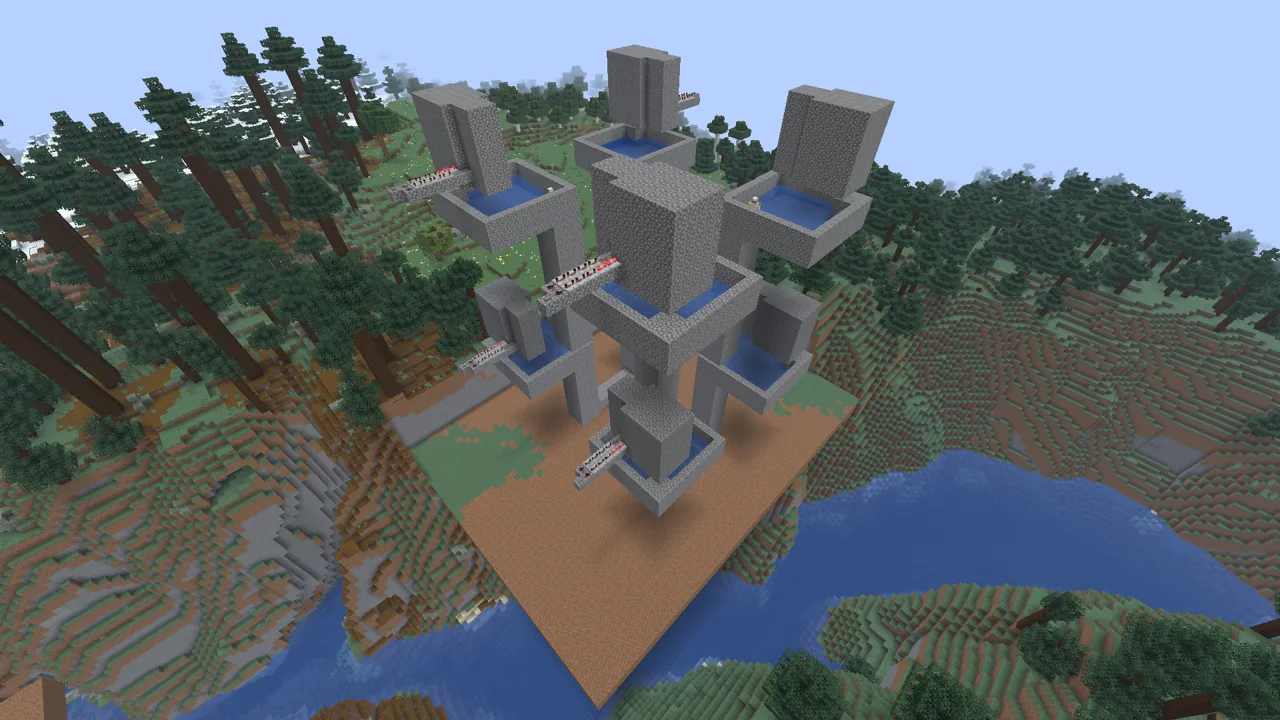
Litematica does more than show a hologram to build from by hand. In Creative mode it can paste the whole build into your world at once: press one key, and the farm or house appears as real blocks. Use it to try a schematic before you build it in survival, or to set up a test world.
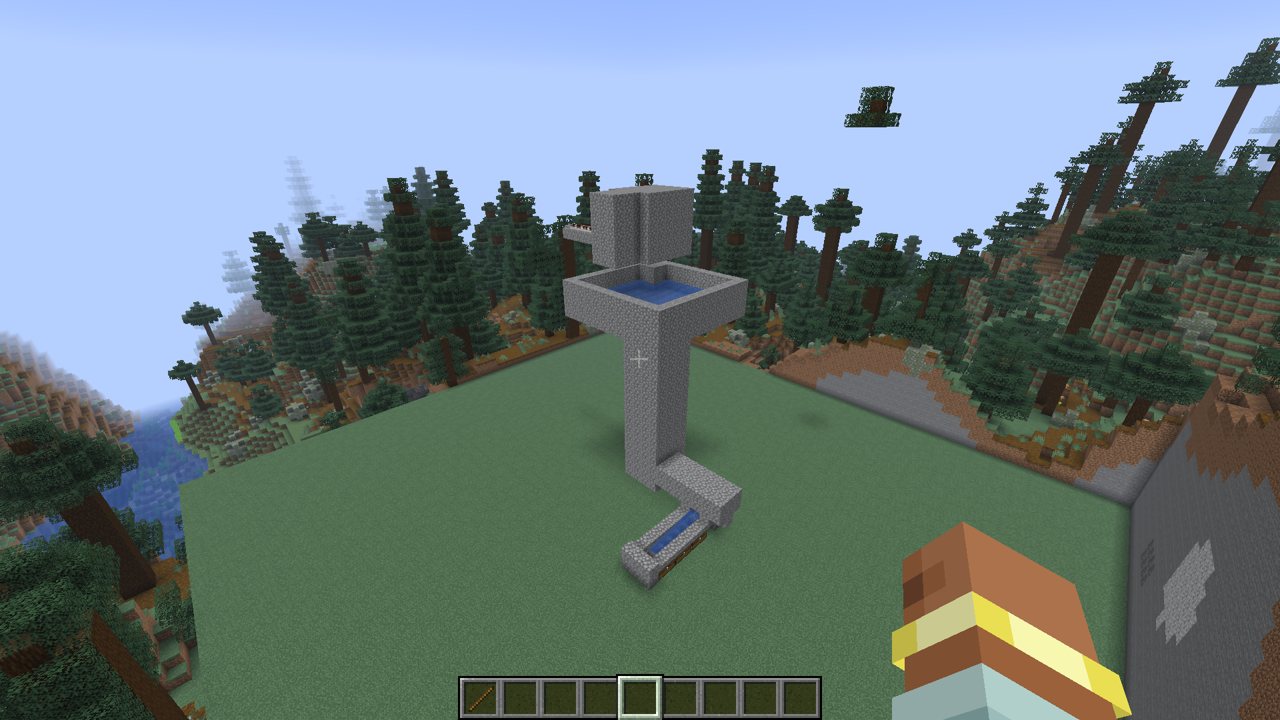
The screenshots were taken in Minecraft Java 26.3 with Litematica 0.29.1 and MaLiLib 0.30.2 in English, so the button names match yours. If you don't have Litematica yet, start with How to Use Litematica. It covers installing the mod and placing a hologram in detail.
What you need
- Java Edition with the Fabric loader and the MaLiLib and Litematica mods for your game version.
- Creative mode. In a singleplayer world, that is enough. On a server, pasting only works for players allowed to run commands (operators), because the mod places blocks with
/setblockand/fill. - A schematic file in your
.minecraft/schematicsfolder..litematic,.schem,.nbtand.schematicall work. Ready-made builds and farms are in the catalog at schem.beezzland.com.
Step 1. Bind the paste key
Out of the box the paste action has no key. Nothing will paste until you bind one.
- Press M + C to open the Litematica settings.
- Open the Hotkeys tab.
- Click the magnifying glass and type
executeOperation. Only one row is left. - Click the button in that row, then press a key, for example R.
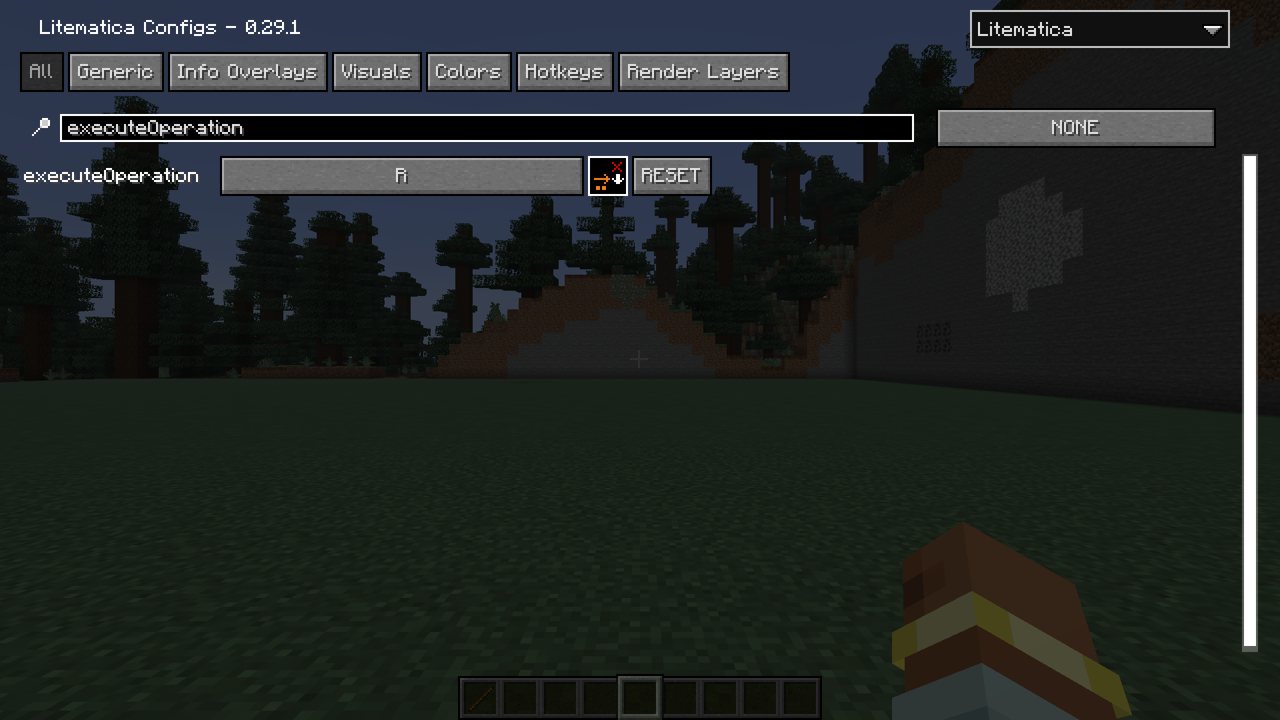
The key is saved, so you only do this once.
Step 2. Load the schematic and place the hologram
- Stand where the bottom corner of the build should go.
- Press M and choose Load Schematics.
- Pick the file. The panel on the right shows the build's size and block count.
- Make sure Create a placement is ticked, then click Load Schematic at the bottom.
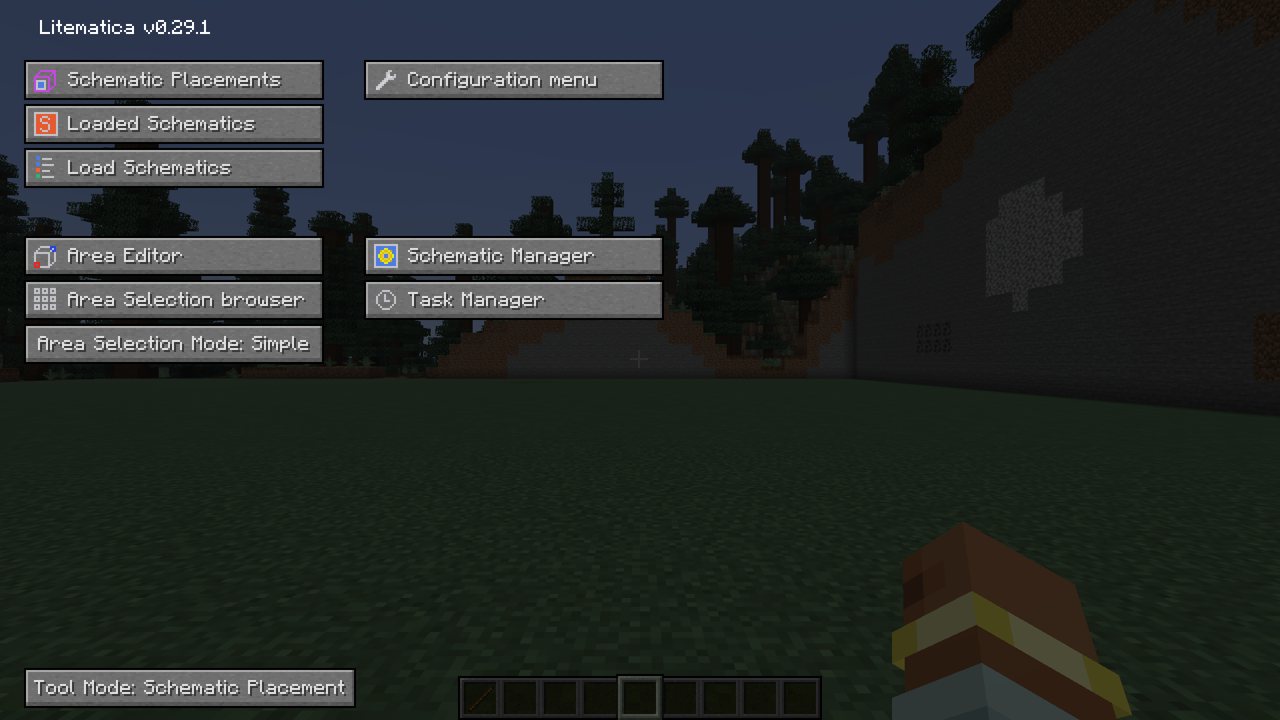
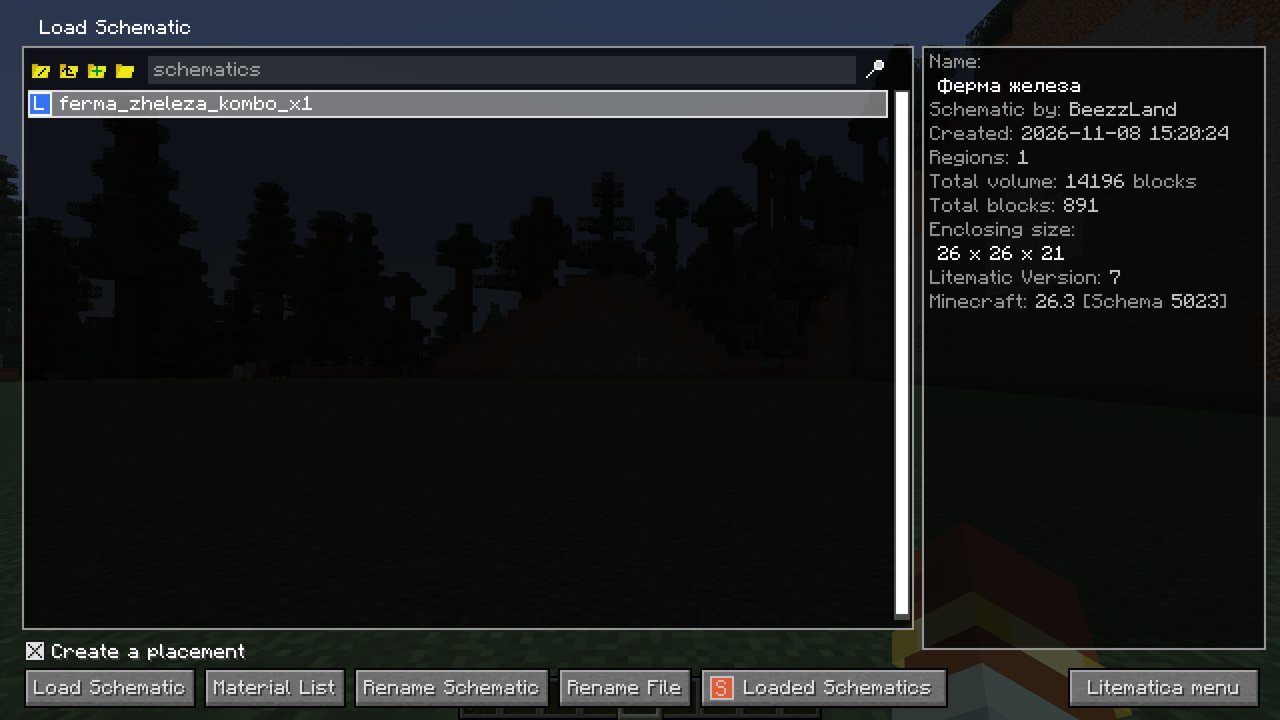
A see-through hologram of the build appears at your feet.
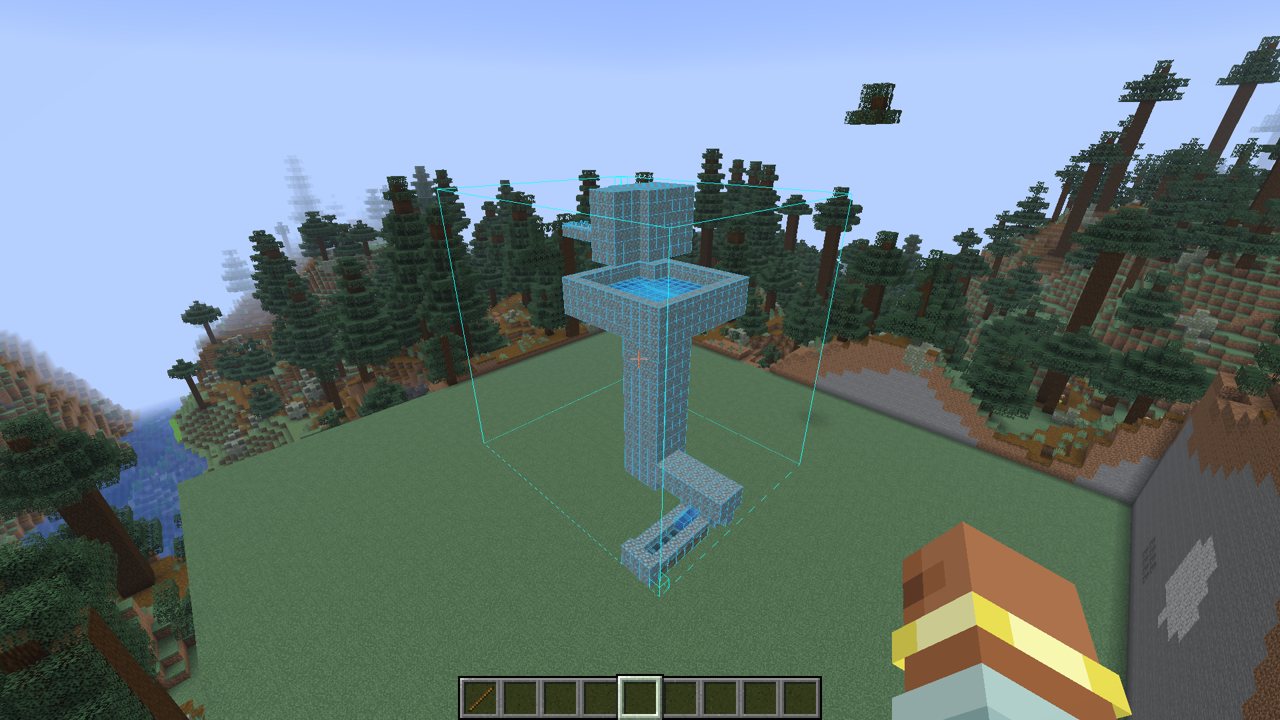
Step 3. Move the hologram if needed
Press M + P (or M → Schematic Placements) and click Configure next to your placement. Here you have:
- Placement origin: the X, Y and Z of the bottom corner. The + and − buttons move it one block.
- Move to player: bring the hologram to your feet.
- Rotation and Mirror: turn the build 90°, 180° or 270°, or flip it.
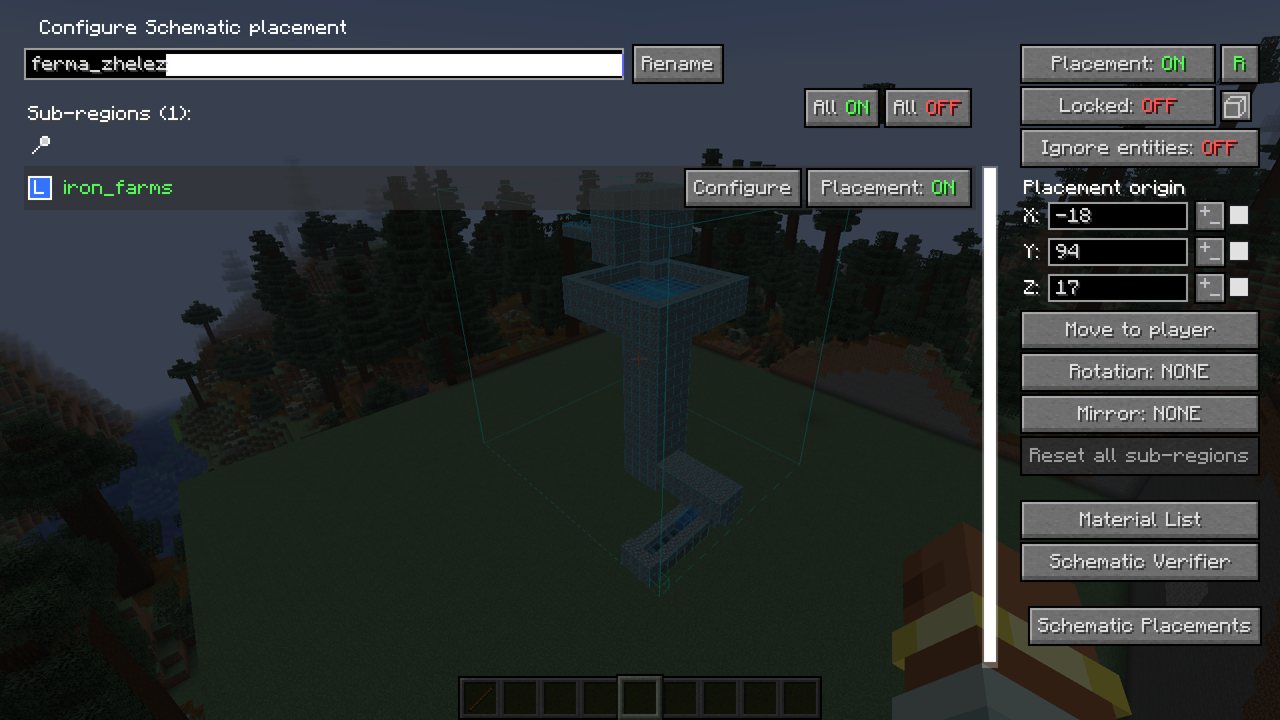
The build is pasted exactly where the hologram is, so get the hologram right first.
Step 4. Switch to "Paste Schematic in world"
Hold a stick: it is Litematica's tool item. Ctrl + mouse wheel cycles the tool modes. Scroll until the Mode line at the bottom left reads Paste Schematic in world.
You can also do it without the wheel. Press M, then click the Tool Mode button at the bottom until it says Paste Schematic in world.
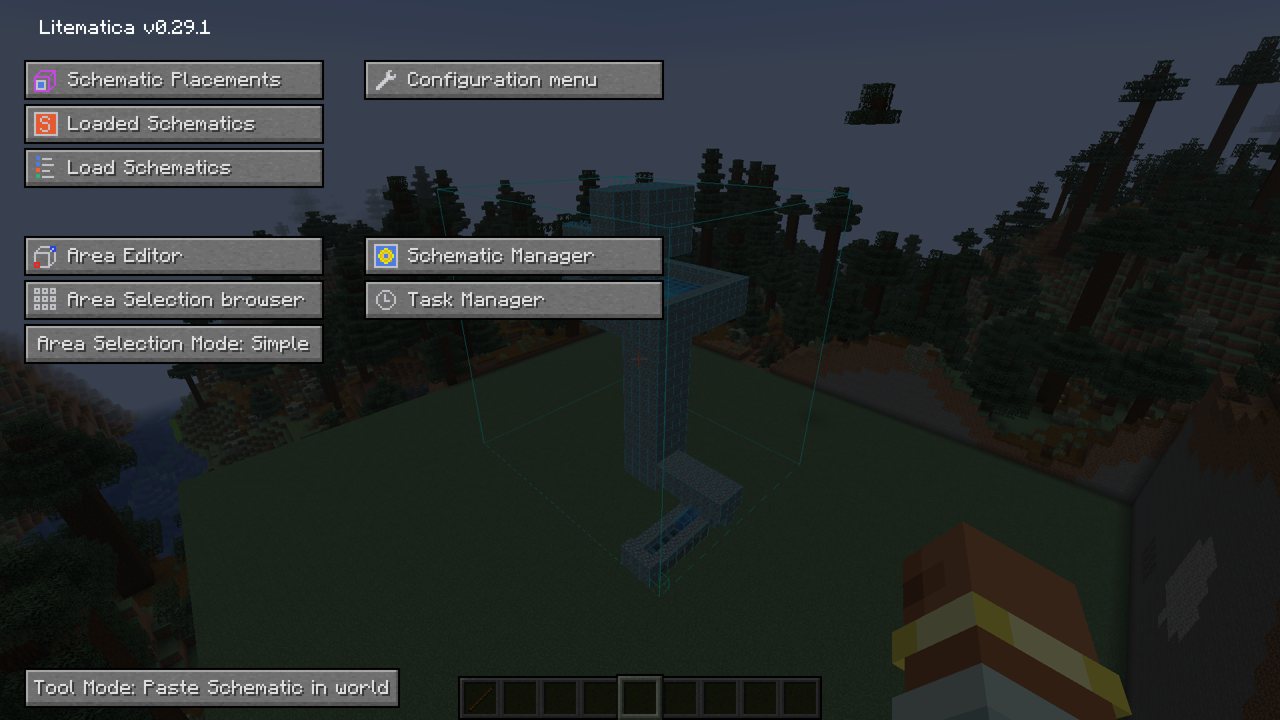
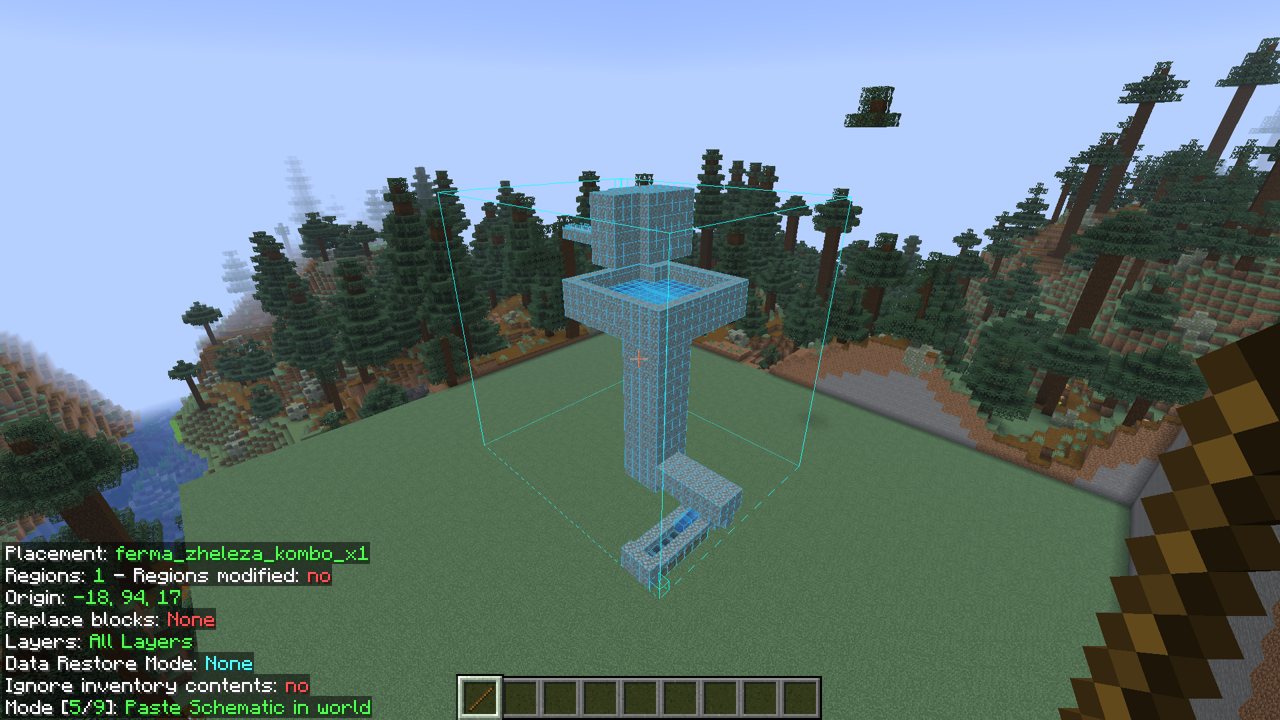
Step 5. Press the paste key
With the stick in your hand, press the key from step 1 (R). The build appears in the world. Large schematics take a few seconds and paste in parts.
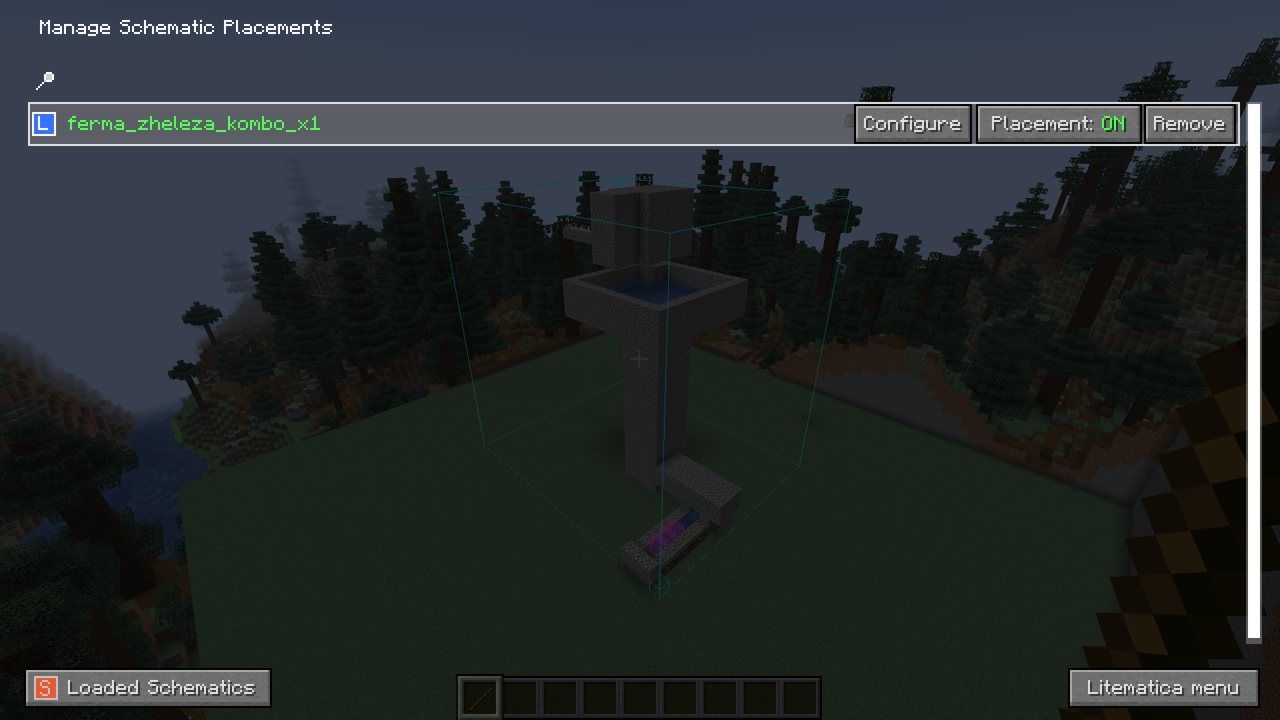
After that you don't need the hologram. Remove it with M + P → Remove. Only the hologram goes away; the placed blocks stay.
If something didn't paste
- Nothing happens. You aren't holding the stick, the key isn't bound, or you aren't in Creative. While you hold the stick, the bottom-left overlay shows which mode is on.
- Dirt or trees are left inside the build. By default Litematica does not replace blocks that are already in the world. The overlay shows this as "Replace blocks: None". Clear the area first, or change it under M + C → Generic →
pasteReplaceBehavior. - There are no mobs. Many schematics, farms especially, are saved without mobs. Villagers, zombies, allays and the like have to be placed with spawn eggs. The schematic's description usually says where.
- The water flows wrong. Water and lava paste as they are in the schematic. Blocks or liquids of yours right next to the build can change the flow, so check the water sources against the build's description.
- It doesn't work on a server. A normal survival player can't paste. There you build by hand from the hologram, as the main Litematica guide explains.
Cheat sheet
| What | Where |
|---|---|
| Bind the paste key | M + C → Hotkeys → executeOperation |
| Load a schematic | M → Load Schematics |
| Move or rotate it | M + P → Configure |
| "Paste Schematic in world" mode | stick in hand, Ctrl + wheel |
| Paste | stick in hand, the key from step 1 |
| Remove the hologram | M + P → Remove |
BeezzLand: vanilla survival
A Russian-speaking survival server for Java and Bedrock, versions 1.21 to 26.3.
play.beezzland.comHow to join